How to Change Your Roblox Display Name for Free (Step-by-Step Guide)
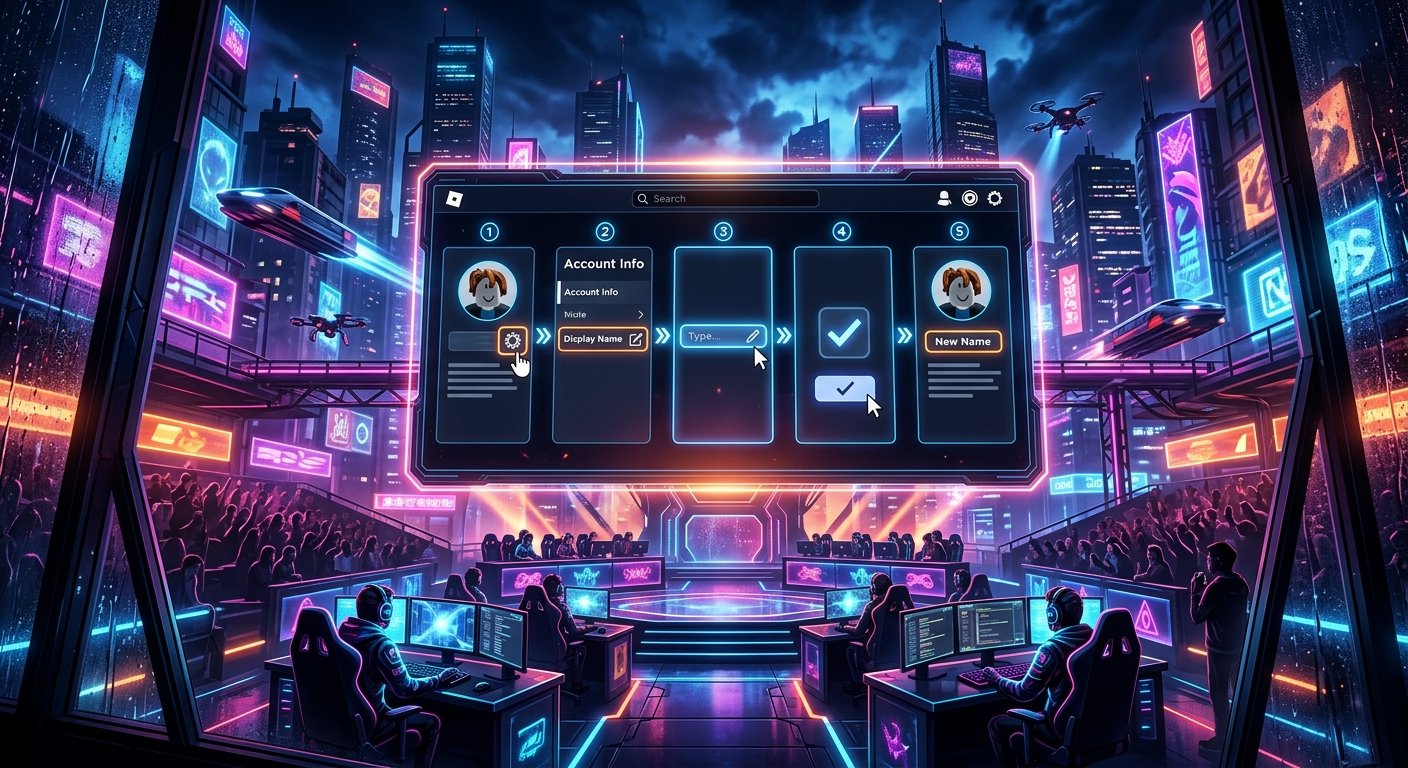
For content creators and competitive players, your in-game identity is the frontline of your personal brand across stream overlays, leaderboards, and video captures. Locking yourself into an embarrassing childhood handle or an outdated clan tag can disrupt your presentation, but Roblox charges a steep fee of 1,000 Robux to formally change your primary account username. Fortunately, Roblox separated public identities from underlying credentials by introducing display names, allowing users to alter what peers see in experiences and chat windows without spending real currency. Mastering how this system operates ensures you keep your branding aligned across YouTube, Twitch, and TikTok without burning through Robux or breaking account security.
Display Names vs. Account Usernames: The Technical Differences
Before you change anything, you must understand how Roblox separates public presentation from account authentication. Your username is your unique, permanent handle prefixed by an @ symbol; it serves as your primary login credential, determines your profile URL, and costs 1,000 Robux to modify. Your display name, on the other hand, is completely cosmetic and serves as the visual moniker that appears over your avatar's head in-game, on server player lists, and next to your chat messages. Crucially, display names are non-unique, meaning thousands of creators can share identical display names while retaining completely isolated backend accounts. If you are brainstorming a fresh identity for your channel, exploring 500+ Cool Gamertags That Are (Probably) Not Taken can help you discover concepts that fit inside Roblox's visual bounds. Just remember that while your display name establishes visual branding in content recordings, your actual username remains visible on your main profile page and within trading logs to prevent malicious impersonation.
The Universal 4-Step Process to Update Your Display Name
Modifying your display name takes less than a minute and utilizes the exact same basic interface structure across PC browsers, the desktop client, and mobile devices. First, open Roblox and navigate to the Settings panel, accessed via the gear icon in the upper-right corner on desktop browsers or via the three-dot icon in the navigation bar on iOS and Android. Second, select the Account Info tab from the settings sidebar to view your primary registration details, including your email, phone number, and name credentials. Third, locate the Display Name field situated directly above your Username entry and click or tap the pencil edit icon beside it. Fourth, enter your desired moniker into the text box, confirm it conforms to platform parameters, and press the Save button. The change applies across live experiences immediately, though you may need to rejoin a running server for the new text tag to propagate above your avatar.
Display Name Constraints: The 7-Day Cooldown and Character Limits
Roblox imposes strict boundaries on how frequently and dramatically you can shift your public display name. The most critical operational boundary is the rigid 7-day cooldown: once you hit save on an updated display name, the system locks that field for a full 168 hours before permitting another adjustment. This means a typographical error or hasty decision will linger through an entire week of stream recordings and community uploads. Furthermore, your display name must span between 3 and 20 characters in total length, and it strictly restricts input to alphanumeric characters alongside single underscores. You cannot insert spaces, non-standard punctuation, or unicode symbols into the field, regardless of third-party keyboard bypasses. Selecting a moniker requires careful deliberation so you are not stranded with a rushed tag during an important recording session; you can look through Cool YouTube Names That Aren't Taken: 200+ Ideas + How to Check to find concise, memorable naming structures that fit neatly within these 20-character boundaries.
Platform-Specific Nuances: Desktop Browsers vs. iOS and Android
While the core navigation path remains consistent, the user experience differs depending on the client platform you use to enact the change. On Windows and macOS web browsers, the Settings gear is perpetually visible in the persistent top header, providing immediate access to the Account Info module without interrupting active client windows. On mobile platforms, the workflow requires tapping the More icon—represented by an encircled ellipsis on the bottom navigation bar—scrolling past the community and catalog shortcuts, and opening the dedicated Settings sub-menu. If you maintain multiple accounts for recording challenges, alternate camera angles, or private testing, mobile users must verify they are logged into the designated production profile before committing changes. Desktop users should clear their active browser cache if an updated display name fails to populate visually across Roblox Studio sessions or third-party web tracking tools, as stale session cookies can occasionally display old cached metadata on the web portal.
Content Creator Best Practices: Avoiding Impersonation and Chat Filters
Display names present significant branding advantages, but they also expose creators to moderation hazards if approached carelessly. Roblox runs all display name inputs through its automated text filter before saving; submitting words that trigger safety flags, offensive phonetic pairings, or disguised profanity will result in immediate rejection or temporary moderation strikes against your account. Additionally, while display names allow non-unique labeling, deliberately mirroring the display name and avatar clothing of massive creators or verified Roblox developers to mislead young audiences can trigger manual moderation reviews under platform impersonation policies. For video editors and livestreamers, clarity matters just as much as compliance: long strings of repeating underscores or chaotic letter combinations clutter leaderboard UI overlays and create messy bounding boxes in your video footage. Aim for clean, legible names that viewers can identify instantly when watching gameplay clips on mobile feeds.
Frequently Asked Questions
Can two people have the exact same display name on Roblox?
Yes. Display names are not unique, meaning multiple players can share the exact same visible name in a game. However, your underlying @ username remains completely unique to your account.
Does changing my display name reset my Robux or game inventory?
No. Changing your display name is purely cosmetic and has zero impact on your inventory, Robux balance, game passes, or experience progress. All your data remains linked to your permanent account ID and username.
Can I revert my display name back to my original username?
Yes. You can reset your display name to match your base account handle at any time by editing the field, though you still must observe the 7-day waiting period if you changed it recently.
Keeping your online presentation clean and cohesive across your primary gaming titles is essential for building an audience that recognizes your content across different platforms. Display names give you the freedom to experiment with themes, match your clan, or sync your profile with new channel rebrands without bleeding your digital wallet dry. Once your visual identity is locked in, you can focus on upgrading the audio, pacing, and visual assets that actually keep viewers glued to your screen. Try the Platform Username Generator.